
Have you ever looked at your Google Ads location report and found random clicks outside of your service area? If so, you might see clicks from Perth, Cairns, and even overseas, despite none of them being anywhere near your actual service area.
That happens when Google Ads location targeting runs on a few settings most local advertisers never touch. One setting decides whether your ads reach people nearby or just people who searched with your area in mind.
We see this exact issue often at SlamStop, where we manage local campaigns every day. This guide walks you through how location targeting works across standard Google Ads and local services ads. You’ll see where it usually goes wrong and how to keep your ad spend where it belongs.
Google Ads Location Targeting: User Location vs Location of Interest
As we mentioned, proper Google Ads location targeting comes down to one setting most advertisers never check. By default, Google uses Presence or Interest targeting, which doesn’t limit ads to people physically inside your area.
Google also serves ads to people who show interest in a location, even if they’re searching from somewhere else entirely. For instance, a local business in Toowoomba can end up paying for clicks from someone browsing in Sydney.
Let’s look at what those two aforementioned settings actually decide:
- Presence Targeting Setting: This limits your ads to people who are physically inside your chosen area when they search. It’s the setting most local businesses want, since it filters out anyone just browsing from another city.
- Interest-Only Targeting: If someone searches about your area from somewhere else entirely, this setting still shows them your ad. Someone planning a trip to Brisbane could trigger your ad from Perth weeks before they arrive.
- Combined Default Setting: Google Ads uses both by default, which is why local searches sometimes pull in traffic from far outside your service area. Most advertisers never realise this setting exists until they check their reports.
To be honest, presence targeting is the fix for most local businesses. It keeps your campaign settings focused on people who can walk through your door or pick up the phone, instead of paying for interest alone.
But even with the right setting in place, distance still plays a part in who sees your ad.

Does Radius Targeting Cause Overspending?
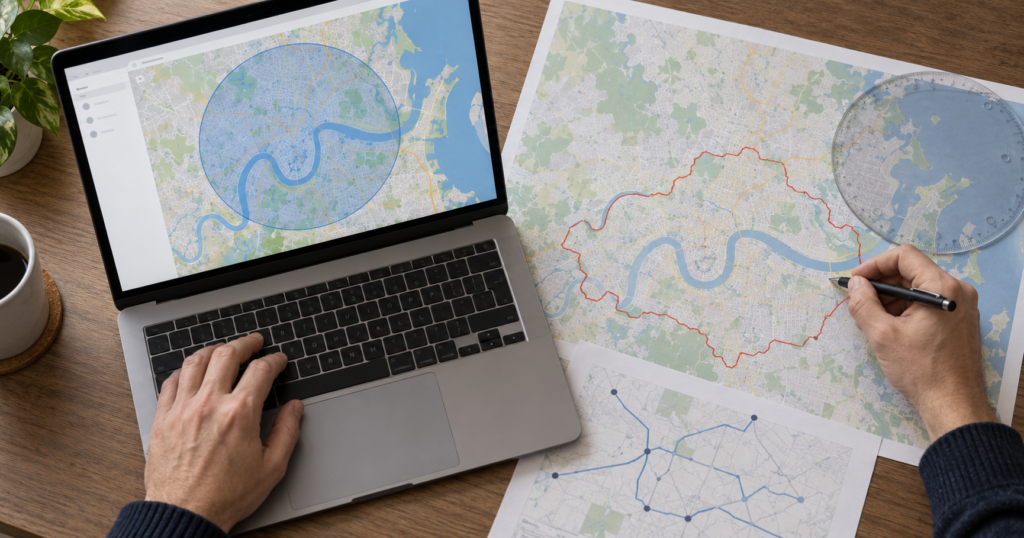
Yes, but only if your radius doesn’t match how far customers travel to reach you. Radius targeting draws a circle around your business locations, but those circles ignore rivers, highways, and suburb boundaries entirely.
Take a fifteen-kilometre radius from a Brisbane CBD location as an example. That circle can stretch into geographic locations your business can’t realistically service, even though Google still counts them as geo-targeted locations.
Google builds every radius using a mix of location signals, including IP addresses, GPS, and Wi-Fi data. None of these guarantee perfect accuracy, though. That’s exactly why a given location can sit inside your radius on paper but outside your real service area in practice.
Running multiple locations makes this worse. Overlapping radius zones can push your bidding strategy to compete against your own ads for the same searcher. That drives up costs for clicks you were always going to get anyway.
Once you’ve drawn the right radius, the next question is whether you’re actively keeping the wrong areas out.
Why You Should Exclude Certain Areas
Excluding the right areas keeps your ad spend pointed at local customers inside your service area who can become paying clients. It’s a setting a lot of local business owners forget even exists.
We’ve pulled reports at SlamStop where the same three or four suburbs drained the marketing budget every month before anyone caught it. The same suburbs cause the same overspend, month after month, until someone finally excludes them.
That pattern is one of the most common Google Ads mistakes we come across. Three types of exclusions cover most of the geographic waste in local Google Ads accounts:
- Low Converting Suburb Exclusions: Exclude areas that show high spend but few conversions after several weeks of data. Give it enough time first, since one slow week doesn’t always mean the suburb is a poor fit.
- Non-Service Area Removal: If your business doesn’t operate or deliver in a region, remove it, even if Google still targets that area by default. This stops your ads from showing up for customers you could never serve.
- Overlapping Radius Cleanup: Cutting these zones protects your budget from campaigns that compete against each other for the same customer. Businesses running several locations often create this overlap when their radius settings cross over.
Low performers, areas outside your reach, and overlapping radius zones are the three most common culprits. Most local accounts have at least one sitting in their targeting right now.
How to Read Your Location Report
Once your targeting and exclusions are set, the next step is checking whether they’re doing their job. Google’s own location reports show exactly which suburbs, cities, or regions generated clicks, cost, and conversions for your campaigns.
This report deserves a regular spot in your Google Ads audit, checked monthly rather than once and forgotten. Sort by cost per conversion first, and the suburbs draining your budget become obvious.
What Google Maps Data Tells You
Google Maps data shows the physical distance between searchers and your business. This confirms whether local searches are genuinely nearby or just people browsing with no real plan to visit.
Google search results can pull in clicks from people who searched with your area in mind, even from three suburbs over. Location extensions help close that gap by showing your actual address alongside the ad.
How Long to Wait Before You Exclude a Suburb
One bad week doesn’t mean a suburb is a write-off. A single dip in conversions could be a public holiday, bad weather, or pure chance. So, wait for the pattern instead. Four to six weeks of data usually tells you whether a suburb is genuinely underperforming or just had a slow stretch.
Once you’ve spotted that pattern, you’re ready to act on it. That could mean excluding the suburb, adjusting your radius, or leaving it alone for another month.
How Local Services Ads Handle Location Differently
Standard Google Ads campaigns aren’t the only place location settings cause confusion. Local Services Ads work on a different system altogether, so the fixes above won’t apply here.
Instead of a radius or presence and interest setting, your service area comes straight from your Google Business Profile. So, update your profile, and your coverage area will update with it.
That profile also feeds into Google’s verification process. Passing it earns you the Google Verified badge. The process can include licence checks, background checks, and insurance checks, depending on your trade and location.
Once you’re verified, the cost model shifts too. These campaigns run on a pay-per-lead model, not pay-per-click. Location mistakes here waste leads instead of clicks, but the result is the same: a budget spent on the wrong area.
Who Sees Your Local Services Ads?
Getting that badge is only half the job. The other half is making sure the right customers find you when they search.
Google matches local services ads to searchers based on user intent, instead of just location. Someone searching for an emergency locksmith at midnight has different intent than someone comparing quotes for next month.
Your service categories decide which searches you show up for. List the specific services you offer, and avoid vague or missing job types. We say this because Google often skips incomplete profiles for searches you could have won.
Accurate categories bring in high-quality leads instead of local leads that never convert. Potential customers only turn into real leads when your categories match what they’re searching for.

A Checklist for Spotting Geographic Waste
You’ve covered targeting settings, radius overlap, exclusions, and reports for both standard Google Ads and local services ads.
Two of these checks apply to both systems; the third is specific to standard Google Ads targeting settings:
- Confirm Your Google Ads Setting: If you’re running standard Google Ads, check whether presence or presence and interest suit your business better. Most local businesses do better with presence only.
- Monthly Report Review Habit: If you only check performance once a year, suburbs draining your budget can go unnoticed for months. Reviewing monthly catches the pattern early instead.
- Gradual Exclusion Additions: Cutting one or two underperforming areas at a time protects you from removing a suburb that just needed more time. Watch your ad budget shift towards suburbs that convert as you go.
Run through these three checks every month, and geographic waste will stop piling up before it eats into next quarter’s results.
Keep Your Ads Close to Home
Every setting in this guide points to the same fix: match where your ads show up to where you can deliver.
Start with your targeting setting, then check your radius, then review your report for suburbs that never convert. If you run local services ads too, confirm your Google Business Profile reflects your real coverage area.
None of this takes long once it’s part of your monthly routine. It just needs to happen, since service areas, budgets, and business goals shift more often than most advertisers check for.
A quarter can pass without a single review, and by then, the real budget has gone to the wrong suburbs. If you’d rather have someone else keep an eye on it, SlamStop manages local Google Ads accounts every day, and catching this kind of leak is exactly where we start.